Optimising Image Delivery on the Web
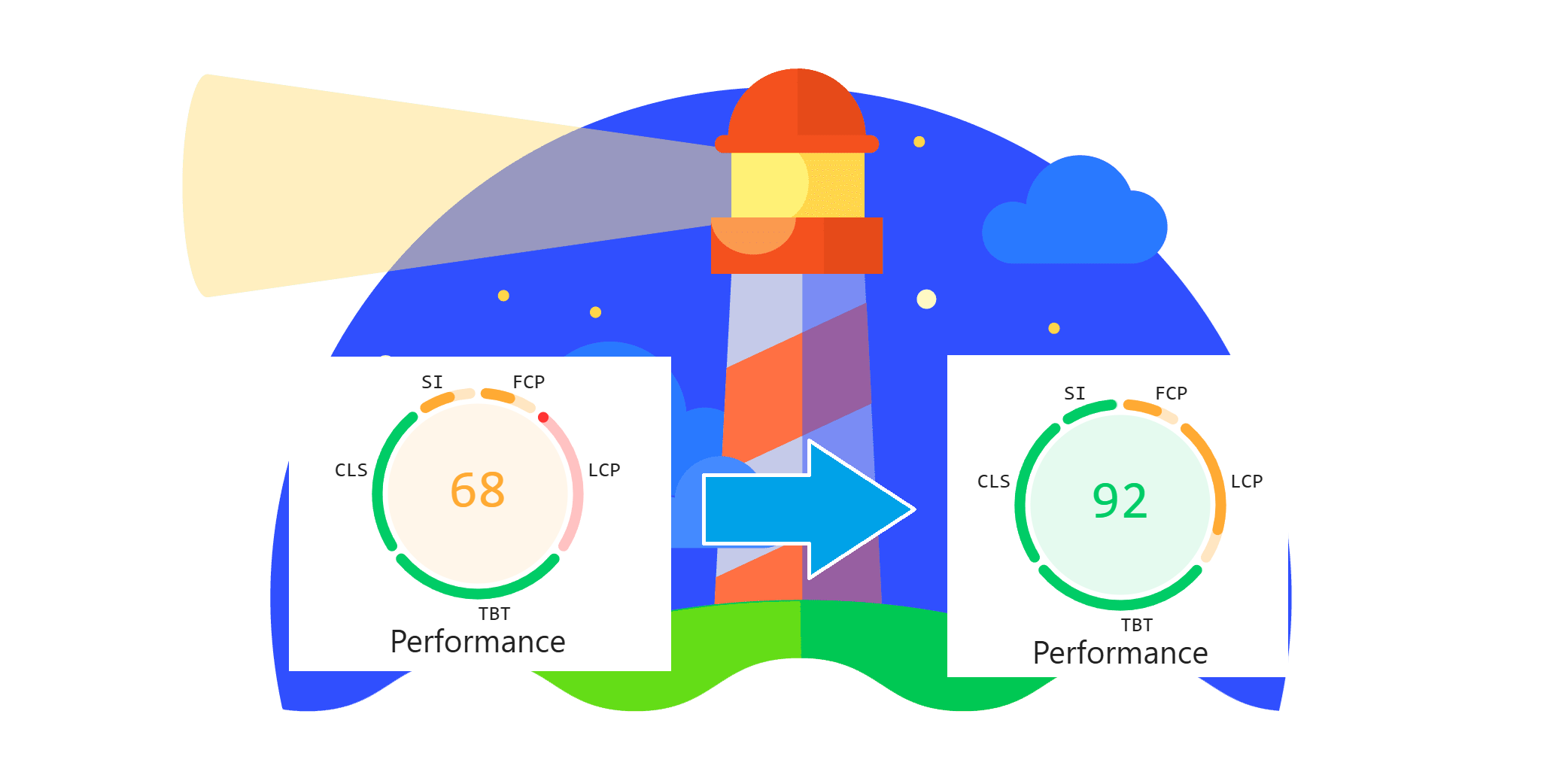
When serving a page on the web, you're usually serving some images along with it. If those images are above the fold, you usually want to load them as quickly as possible. Anything below the fold, you want to postpone to leave bandwidth for the important stuff.
This post deals with how you can optimise image delivery, starting from simple, immediate actions, to complex, specialised solutions.
Lazy Loading
If your page is heavy on image use above and below the fold, you will want to eagerly load the visible images, and defer loading the images that aren't going to be shown yet.
Simple - loading="lazy"
The loading attribute provides a simple and straightforward way of lazy loading images. Adding this attribute to an image defers downloading it until it is a certain distance from the viewport.
For Chrome, the distance is decided by the network type, starting from 8000 px on slow 2G, down to 1250 px on 4G. You can see the values here.
Firefox is significantly more optimistic, using a 600 px margin for everything.
Finally, Safari uses one full viewport size in each direction.
Complex - Using the Intersection Observer API
While the loading-attribute provides an quick and easy setup for lazy loading, it is not consistent across browsers. Even if it were, you may want to differentiate between how early or late to lazy load each image.
A library such as vanilla-lazyload does just that. It uses the native IntersectionObserver API and allows configurable thresholds along with a host of other features.
Image Encoding and Responsiveness
Next up is image encoding and resizing. Historically, JPEG was king for lossy images, and PNG for lossless. It's not like that anymore. New image formats such as JPEG XL, AVIF and WebP are achieving superior compression and performance, both lossless and lossy, without compromising on quality. JPEG XL is the most feature-rich format, and provides superior loading and compression.
By using a <picture> element and several <source> elements inside, you can serve different formats based on browser support. The following table shows the optimal formats for each browser:
| Browser | High Quality / Large Images | General Purpose | Low Quality / Small Images |
|---|---|---|---|
| Safari | JPEG XL | JPEG XL | AVIF |
| Chrome | WebP | AVIF | AVIF |
| Firefox | WebP | AVIF | AVIF |
Another perspective is serving the correct resolution. These are savings you can make without picking a side in the image encoding wars. Using srcset you can serve different image resolutions based on screen width or pixel density.
Simple - Squoosh
The Chrome team has developed Squoosh, which allows you to upload an image and choose image format, resolution as well as degree of compression. A slider is provided to show the difference in quality side by side.
This is the perfect solution for an amount of images small enough to be converted by hand.
Medium - Automating Compression and Resizing
Squoosh does not maintain a CLI, so automating it is not viable. A few other alternatives out there do, though.
Sharp.js provides support for the main formats PNG, JPEG, AVIF, WebP and GIF. Using a plugin like imagetools, which uses Sharp.js under the hood, you can specify format and dimension for your images when importing them, and let Vite handle the rest.
Complex - Serving Images from a Cloud Provider
If you're working with a large amounts of images served dynamically, with varying sizes that are only known at run-time, converting by hand, or building a pipeline for static resources won't cut it.
A cloud provider such as Cloudinary specialises in solving that problem. Cloudinary provides an Image API for serving a source image in any format, quality and size at run-time, either by configuring how images are served in general, or by specifying specific parameters for a single image.
Preloading and Prioritizing
Your browser does some prioritising for you when loading image. If it can detect that an image will be in the viewport, it raises the priority of it, although that won't be possible until late in the loading process, since styling and markup must already be loaded before that can be determined. So providing hints to the browser early on in the document can improve your loading times.
Simple - Preload images
In the <head> element, adding <link> elements with the preload value set will tell your browser to begin fetching that resource:
<link rel="preload" as="image" href="landing.jpg" fetchpriority="high">Notice the fetchpriority-attribute. It tells the browser to prioritise fetching the image over other resources. How resources are prioritised is browser dependent.
Chrome
source: https://docs.google.com/document/d/1bCDuq9H1ih9iNjgzyAL0gpwNFiEP4TZS-YLRp_RuMlc/edit?tab=t.0
In Chrome, images are initially prioritised with low or medium priority, competing for resources with low priority JavaScript(async/deferred, and JS after the first image) and low priority XHR-requests It can be raise to high priority. JavaScript placed early in the document is high priority together with XHR-requests.
The only resources prioritised higher than high are early CSS (before reaching a non-preloaded image) and fonts. During layout, the browser tries to figure out which images are in the viewport, and raise their priority to high. This is going to be relatively late in the loading process, so providing fetchpriority="high" achieves the same priority, but the browser can begin loading earlier.
Firefox
source: https://firefox-source-docs.mozilla.org/networking/http/prioritization.html
Firefox prioritises images less than any other part of the document by default. However with fetchpriority=high you can prioritise images above or as high as any other resource's default setting except for preloaded JavaScript. The main difference between Firefox and Chrome is that fonts are higher priority in Chrome, and cannot be prioritised over by an image.
Safari
There's not much online about how Safari implements prioritisation internally, but it is guaranteed to support the Fetch Priority API.
Early Hints (HTTP 103)
Sending an informational response with HTTP status code 103, along with relevant links for preloading and preconnecting, provides hints that the browser can use to start loading resources and preconnecting to origins before the first bytes of the actual document are even sent.
If you're using Cloudflare, the following documenation describes how to implement it:


Using the Early Hints informational response can shave critical time off of LCP, as the browser can start requesting images and other resources while the server is still processing it's actual response.
Conclusion
This post was meant as a way for me to explore how to optimise image delivery on my personal website. So don't take this post as exhaustive advice, but rather as a few good tips and tricks on how to optimise your image delivery.
